CoursesAI Handles Your Emails
ChatGPT · Gmail · Google Calendar
AI Handles Your Emails
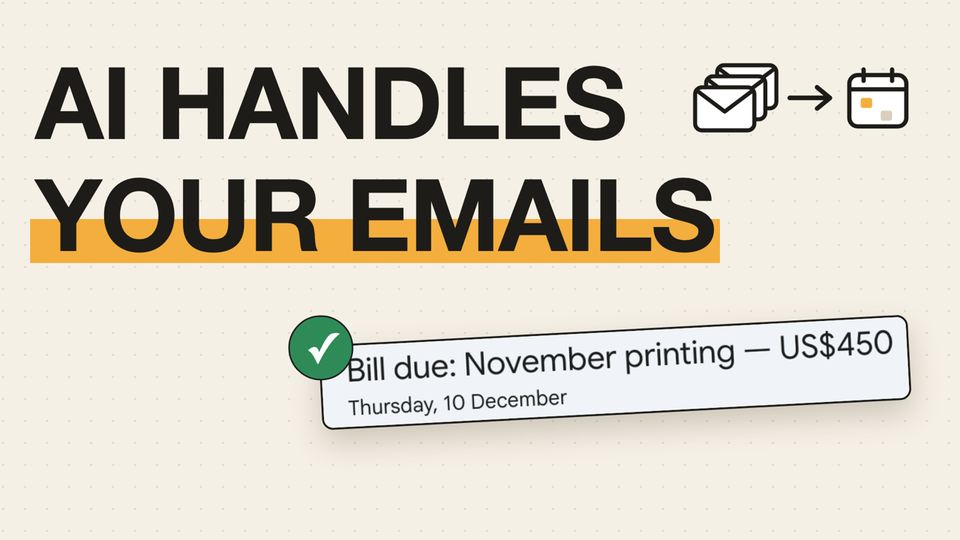
A ChatGPT agent adds Gmail bills and meetings to Google Calendar
Too many emails to read one by one, and a bill or a booked meeting slips through. Here I build an AI agent in ChatGPT: every day it reads your new Gmail and puts bills and meetings straight into Google Calendar.
Every day it does three things
- A bill: an all-day item on its due date, with the amount
- A confirmed meeting: an item at its real time
- Anything missing or not confirmed: a "Follow up" item the next day, saying what's missing
Every item links back to its email. It never sends email, sends invites or pays anything.
What you need
- ChatGPT on a computer: chatgpt.com
- A Google account with Gmail and Google Calendar
Steps
- Connect your email and calendar: in ChatGPT, click Plugins on the left → Gmail → Install plugin → sign in with your Google account → Continue. Then do the same for Google Calendar.
- Test it with the two questions below. If it finds the email and answers about tomorrow, you're connected.
- Schedule it: click Scheduled on the left → Add → paste the instructions below → Repeat: Daily → Time: when you usually start work → Advanced → Time zone: yours → Create.
- Test it: open the task → the three dots (top right) → Run now. The first time, the task stops and says "This task needs your attention": click Open chat. ChatGPT asks before it writes to your calendar ("Allow ChatGPT to use Google Calendar?"): choose Always allow, so the daily runs can do it on their own.
The two test questions (use a subject you know)
Find the email with the subject "[a subject you know]" in my Gmail.
What's on my Google Calendar tomorrow?
The instructions from the video, ready to paste
Every day, check the new Gmail messages that arrived since the last successful run. On the first run, check the last 24 hours. Find bills, and emails about appointments or meetings. If a bill has a clear amount, currency and due date, add a private all-day item on the due date, with the amount. If a meeting is confirmed, with a clear date, start time, length or end time, and time zone, add a private calendar item at its actual time.

If it's a bill or a meeting but details are missing, or the time isn't confirmed yet, add an all-day "Follow up" item on the day after the run, in my calendar's time zone, saying what's missing. In every item's description, put a clickable link to the original Gmail thread. If you can't get a link, say so in the item and write the sender and subject, so I can find the email. Before adding anything, check whether the same email and the same thing are already in my calendar, so nothing is doubled. Add straight to my calendar. Never send email, send invites or pay anything.
Try it with three emails, sent from another address
① Subject: November printing invoice
The November printing bill is US$450. Please pay by December 10. The invoice is attached. (attach a PDF with the amount and due date)
② Subject: New project call
Confirmed: Thursday, December 3, 2:00 pm Eastern Time (New York), one hour, on Zoom to talk about the new project.
③ Subject: Catch up next week?
Are you free sometime next week? I'd like to catch up.
After Run now, check
- The bill is on its due date, with the right amount.
- The meeting is at the right time.
- The unconfirmed one has a "Follow up" the next day.
- Each item's link opens the original email.
- Run it again: nothing is added twice.
Good to know
Tested on 27 November 2026 at chatgpt.com, with the Gmail and Google Calendar plugins. ChatGPT changes its screens often, so yours may look a little different.
OpenAI's help pages (read 27 November 2026)
- Scheduled tasks: help.openai.com/en/articles/10291617
- Connected apps: help.openai.com/en/articles/11487775
- App permissions: help.openai.com/en/articles/20001495
Your turn
Which emails would you most like it to sort out for you? Tell me in the comments. And if this helped, subscribe.
Comment on YouTubeDid this course save you time? You can buy me a coffee. The courses stay free either way.
Buy me a coffeeMore courses
-
Claude · Pro plan or higher
Claude New Features Tested
Whiteboards, Sheets & Data
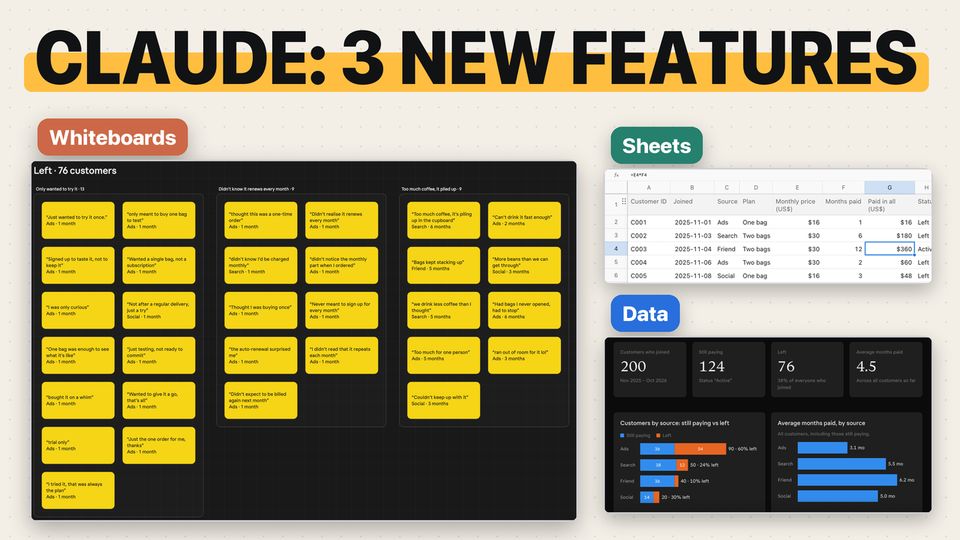
Sort 84 customer comments on a whiteboard, build a sheet you can check, and turn a customer file into a dashboard you can update.
- Video 9:31
- Free practice pack
-
Claude Code · paid Claude plan
Claude Code for Non‑Coders
Paying US$20 a month just to chat?
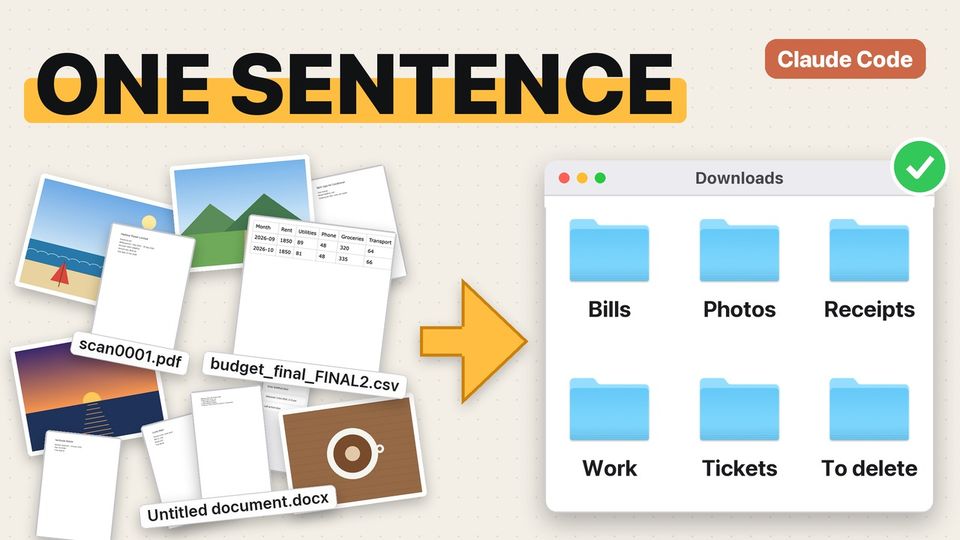
Three jobs, done along with the video: tidy a messy Downloads folder, turn 28 days of shop sales into a one-page report, and build a small tool that times a script read aloud.
- Video 10:36
- Free practice pack